ATM Support & Troubleshooting Resources
Instant ATM help using our AI Voice Agent, repair videos, and technician support for common ATM issues (paper out, card reader messages, communication errors, and on-screen error codes). Designed for merchants and site operators.
Note: Steps may vary by ATM model and software version.
Quick Answer: How do I fix an ATM problem quickly?
Start with our AI ATM Voice Agent. It identifies common issues, guides troubleshooting steps, and escalates to a technician only when needed — reducing downtime across Canadian ATM locations.
Call Jeff: (250) 947-5856

What this page helps with
- ATM error codes and on-screen messages
- Paper, receipt, and card reader issues
- Network and communication faults
- Safe escalation to support or technician dispatch
Quick help for common ATM issues
This page is an informational resource to help identify typical ATM messages and basic corrective steps. If an issue persists or you are unsure, contact a qualified ATM service provider or technician.
If your keypad is failing and you need a replacement fast, see our Hyosung 8000R keypad for sale page for tested replacement units.
Having keypad issues? If your ATM keypad is not responding or entering the wrong numbers, see ourATM keypad not working guide for troubleshooting and replacement options.
Browse by issue
Choose a category below. Each item links to short videos and guidance.
Paper & Receipt Issues
Paper out, receipt printer messages, paper loading basics.
Card Reader Messages
Card retained, read errors, and what to do next.
Network & Communication
Communication errors, offline messages, basic checks.
Error Codes
How to capture the code and what information to provide for support.
Power & Reboots
Safe reboot guidance and what to note before restarting.
Out of Service
Common causes and quick checks before escalating.
How to use these resources
Follow this quick process to resolve issues faster and share clear details if support is needed.
Step 1
Read the message
Note the exact on-screen wording or error code.
Step 2
Watch the short video
Use the matching category in the video library.
Step 3
Try the safe steps
Only do steps that match your model and situation.
Step 4
Escalate if needed
Share the message/code, time, and what you tried.
Instructional video library
Short videos are available on our official YouTube support channel. These demonstrate general troubleshooting concepts and operational steps that apply to many ATM environments.
- ATM Quick Fixes (30–60 seconds)
- Receipt & Paper Issues
- Card Reader Issues
- Network & Communication
- Error Codes
Tip: When contacting support, include the exact message or error code shown on screen.
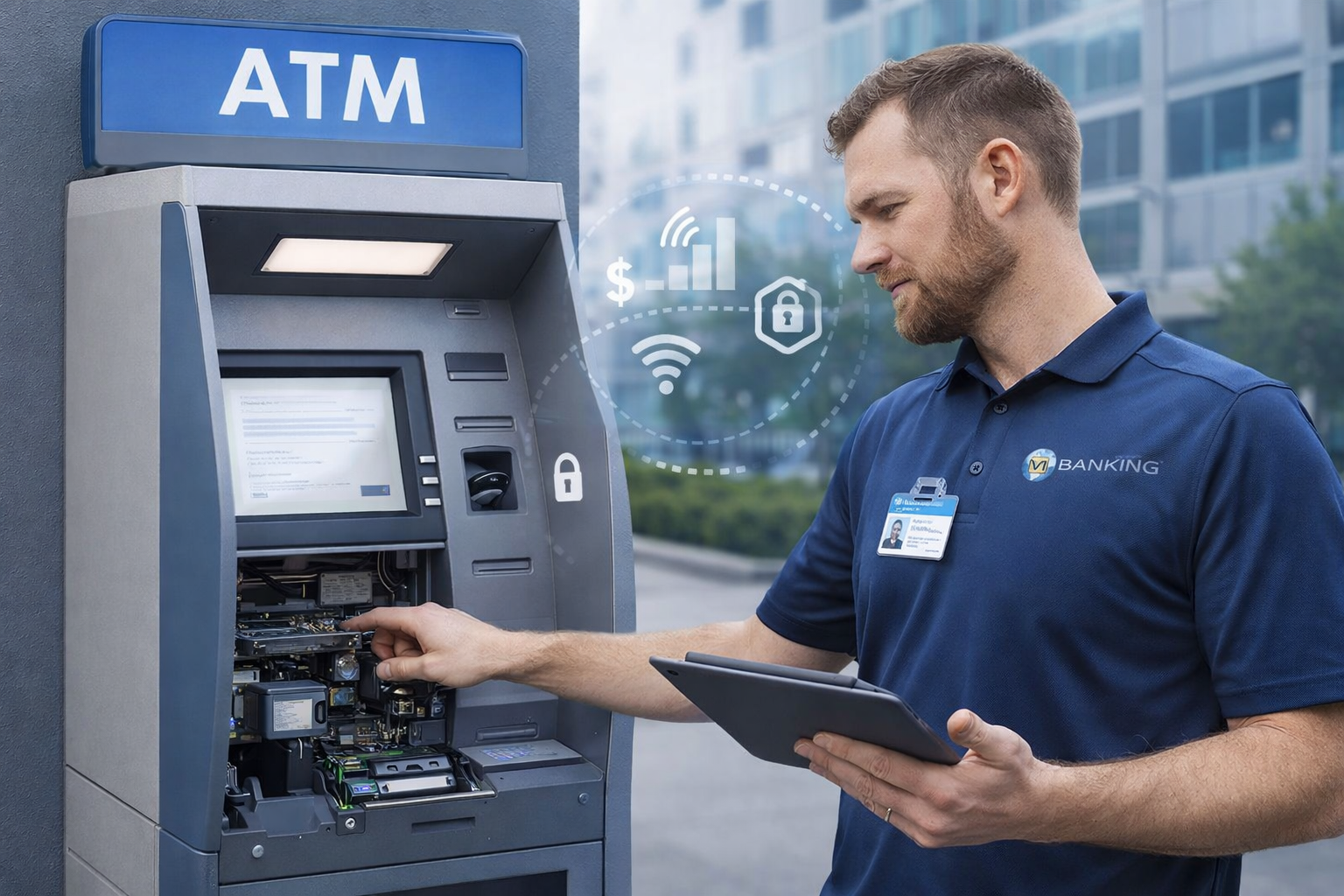
Nautilus Hyosung Service Technician
About VI Banking ATM Solutions
VI Banking ATM Solutions provides ATM installation, monitoring, and technical support services for retail and commercial locations in Canada. The company also publishes instructional resources to help merchants understand and resolve common ATM operational issues.
Important notice
The information provided on this page and in associated instructional materials is for general informational purposes only. ATM procedures may differ by manufacturer, model, and software configuration. These resources do not replace professional technical service or manufacturer documentation. If you are uncertain about a procedure or an issue remains unresolved, contact your ATM service provider or a qualified technician.
ATM Support – FAQs
Quick answers for merchants and location staff.
How to install encryption keys into an ATM (Dual Control – Tech 1 / Tech 2)
Important Notice: Exact menu names and prompts can vary slightly depending on ATM model and software version. Follow processor/service-provider guidance. Encryption key entry must be performed under dual control: Tech 1 enters Part A only and Tech 2 enters Part B only. Tech 1 and Tech 2 must not share key parts with each other.
Before you begin
1) Confirm you have the correct keyload paperwork (PIN Master and MAC Master key sheets) for this specific ATM/terminal.
2) Ensure two authorized technicians are present (Dual Control).
3) Verify the ATM is in a safe state to service (out of customer use) and you can access the operator/service menu per your company’s procedures.
Enter key management (operator/service menu)
4) Enter the ATM operator/service menu using your standard authorized procedure (varies by model/software).
5) Navigate to Host Setup → Key Management → Enter/Install Master Keys (wording may vary).
6) Confirm the keypad/crypto mode settings required by your processor are selected (commonly TDES/TMAC 11 settings), and confirm the keypad state is appropriate (often “Installation State”). If not, set it according to processor instructions.
Load PIN Master Key (Two-person entry)
7) Select Edit Keys → PIN Master Key (Triple) (wording may vary), then choose Entry.
Tech 1 (Part A only):
8) Using the PIN Master key sheet, enter Part A exactly as provided (Block 1 + Block 2).
9) Verify the displayed KCV/Check Value matches the expected Part A KCV on the key sheet.
10) If the KCV does not match, stop and re-enter Part A from the beginning (do not proceed).
11) Select Import/Accept to store Part A.
Tech 2 (Part B only):
12) Tech 2 now enters Part B from the PIN Master key sheet (Block 1 + Block 2).
13) Verify the displayed KCV/Check Value matches the expected Part B KCV on the key sheet.
14) Select Import/Accept to store Part B.
15) Confirm the ATM displays the expected combined/overall check value for the PIN Master key.
Load MAC Master Key (Two-person entry)
16) Select MAC Master Key (Triple), then choose Entry.
Tech 1 (Part A only):
17) Enter Part A for the MAC Master key (Block 1 + Block 2).
18) Verify the Part A KCV matches the key sheet, then Import/Accept.
Tech 2 (Part B only):
19) Enter Part B for the MAC Master key (Block 1 + Block 2).
20) Verify the Part B KCV matches the key sheet, then Import/Accept.
21) Confirm the ATM displays the expected final/combined check value for the MAC Master key.
Exit and verify
22) Exit key management and return the ATM to normal mode (cancel/back out to the main screen).
23) Restart the ATM if recommended by your processor/service procedure.
24) Perform a test transaction to confirm the ATM is communicating and in service.
If any KCV/check value does not match: Stop and contact your processor/service provider before continuing.
Bill Jammed in Dispenser – How to Clear
Notice: Procedures may vary slightly depending on ATM model and dispenser type. If you are unsure or the issue persists, contact your ATM service provider.
1) Steps to clear a bill jam
2) Open the ATM dispenser area according to your normal service procedure.
3) Locate the dispenser belts near the jammed bills.
4) Gently pull the belt away from you to advance the bills forward.
5) Remove any bills that come out the front of the dispenser.
6) Continue moving the belt slowly until all visible jammed bills are cleared.
7) Inspect common problem areas
8) Inspect the rubber roller near the belt path.
9) If the roller appears worn, cracked, or degraded, it should be replaced.
10) A degraded roller can cause bills to repeatedly divert to the reject bin.
11) Check the double detector assembly.
12) Ensure the small arm and spring are present and properly seated.
13)If the arm or spring is loose or missing, this can cause feeding errors.
14) Remove the cash cassette and inspect the rear of the dispenser path.
15) It is common for bills to become stuck at the very back of the dispenser.
16) Slowly move the belt again to bring any hidden bills forward and remove them.
Final check
17) Reinstall the cassette securely.
18) Close the dispenser and return the ATM to service mode.
19) Perform a test transaction to confirm normal operation.
20) If bills continue to jam or feed into the reject bin after clearing:
21) Stop and contact your ATM service provider, as worn parts or sensor issues may require replacement.
Software Upgrade Using USB – How to Update ATM Software
1) Open the top hood of the ATM and tilt it forward to access the internal ports.
2) Locate the USB port in the center of the control area.
3) Do not use the HDMI or USB-C style connector if present.
4) Insert the USB flash drive fully into the correct USB port.
5) Close the top hood securely.
6) Log in to the ATM using the authorized operator or master credentials provided to you.
7) Navigate to the software update menu
8) Go to System Setup.
9) Select System Control.
10) Choose Software Update (menu wording may vary).
11) Select USB Software Update or Update from USB, then confirm Yes.
12) During the update
13) If the ATM does not detect the USB stick on the first attempt:
14) Re-enter the software update menu
15) Ensure the USB drive is fully inserted
16) Start the update again
17) Once the update begins, the ATM will load the software automatically.
18) The update process typically takes 10 to 20 minutes, depending on the software version.
Completion
19) When the update is finished, the ATM will automatically restart and return to service.
20) Remove the USB flash drive only after the update has completed and the ATM has rebooted.
21) Perform a test transaction to confirm normal operation.
22) If the ATM does not return to service or displays an error after updating:
Stop and contact your ATM service provider before attempting additional updates.
How to Enable Dynamic Currency Conversion (DCC)
Steps to enable DCC
1) Log in to the ATM using the authorized operator or master credentials provided to you.
2) Navigate to Customer Setup.
3) Select Standard Options.
4) Choose Option 1.
5) Ensure Terminal Status is enabled.
6) Enable currency conversion options
7) Go to Extended Functions.
8) Select Dynamic Flow.
9) Navigate to Currency Conversion.
10) Select Currency Conversion Option.
11) Set the option to CIPC (or the option specified by your processor).
12) Exit and save
13) Press Cancel repeatedly to exit back to the main screen.
14) The settings will be saved automatically as you exit the menus.
Final check
15) Perform a test transaction using a foreign card to confirm Dynamic Currency Conversion is offered correctly.
16) If DCC does not appear after enabling:
17) Verify that DCC is active with your processor and that the terminal is properly configured. Contact your ATM service provider if the option does not display.
How to Enable Interac in the AID List
2) Navigate to Customer Setup.
3) Select Options 1.
4) Scroll down and choose EMV.
5) Select AID List.
6) Enable Interac AID
7) Locate Interac in the AID list.
8) If Interac is shown as Disabled, select it.
9) Choose Enable AID.
10) Confirm that Interac now shows as Enabled.
11) Exit and save
12) Press Cancel repeatedly to exit back to the main screen.
The setting will be saved automatically as you exit the menus.
Final check
13) Perform a test transaction using an Interac card to confirm it is accepted correctly.
If Interac still does not work after enabling:
Verify that Interac is active with your processor and that the terminal is properly configured. Contact your ATM service provider if the option does not function as expected.
How to Check and Disable CDU Encryption (Before Dispenser Removal)
When this is required
CDU (Cash Dispenser Unit) encryption should be disabled before removing or servicing the dispenser. Leaving it enabled while removing the CDU can cause communication or initialization issues.
1) Log in to the ATM using the authorized operator or master credentials provided to you.
2) Navigate to Customer Setup.
3) Select Operational Function 2.
4) Choose Device Options.
5) Disable CDU encryption
6) Locate the option labeled CDU Binding Enabled (or similar wording).
7) If CDU Binding / CDU Encryption is shown as Enabled, select it.
8) Choose Disable to turn off CDU encryption.
9) Exit and save
10) Press Cancel repeatedly to exit back to the main screen.
The setting will be saved automatically as you exit the menus.
How to Open an ATM Vault Door (When It Will Not Open)
Common reasons a vault door will not open
If the vault door does not open and you hear repeated beeping when pressing the keypad, the most common cause is a dead or weak battery in the vault lock.
Step 1: Check and replace the vault lock battery
Press a button on the vault keypad.
Repeated beeping usually indicates a low or dead battery.
Locate the battery compartment near the vault keypad.
On many models, the battery is located just below the keypad and may have a small pull strap.
Pull the battery holder down and toward you to remove it.
Replace the 9-volt battery with a new, fresh, high-quality battery.
Reinsert the battery securely and try opening the vault again.
Step 2: Check the vault keypad buttons
Press each keypad button and confirm it has spring or bounce when pressed.
If buttons feel stuck or do not return, the keypad may not register input correctly.
If the keypad lacks spring action, it may need repair or replacement.
Step 3: Alternative battery location (some vaults)
On some vaults, the battery is mounted on the door faceplate and hangs on two small screws.
Gently lift or bump the battery holder upward to remove it.
Replace the 9-volt battery and hang the holder back in place.
Step 4: Inspect the faceplate (if applicable)
If the battery is good and the keypad functions normally, the faceplate may be worn or damaged.
Replacing the faceplate can sometimes restore proper lock operation.
Step 5: Check the reject door (very common issue)
Ensure the reject door is fully closed.
If the reject door is partially open or caught, it can prevent the vault door from opening.
If the reject door is stuck, gently apply pressure to close it completely.
Once the reject door is fully closed, attempt to open the vault again.
If the vault still does not open
Stop and contact your ATM service provider.
Forcing the door or lock may cause damage.
How to Change the EPP State on a Nautilus Hyosung ATM Keypad
When this is used
Changing the EPP (Encrypting PIN Pad) state is typically required when installing, servicing, or removing a keypad, or when preparing the ATM for key loading.
Steps to change the EPP state
Log in to the ATM using the authorized operator or master credentials.
Navigate to Host Setup.
Select Key Management.
Choose Enter Keys, then confirm Yes.
Verify encryption mode
Confirm the keypad is set to the required encryption mode (commonly TDES / TMAC 11).
If the mode is incorrect, stop and contact your ATM service provider.
Activate EPP removal state
Select Set EPP State (or Set EP State, depending on software).
Choose Removal State.
If the state shows Deactivated, select Activate.
Press Cancel to return to the previous menu.
Change to installation state
Select Set State.
Enter the required User ID and Password when prompted.
Enter the second User ID and Password when prompted (dual authorization).
When the keypad shows Authorized Removal State, select it again.
Choose Change State.
Select Installation State, then confirm Yes.
Exit and confirm
Confirm the keypad now shows Installation State.
Press Cancel repeatedly to exit all menus and return to the main screen.
Final notes
Installation State is the correct state for key loading or keypad installation.
If the keypad does not change states or displays an error, stop and contact your ATM service provider before proceeding.
Choosing the Right ATM Machine in Canada
Not all ATMs perform the same. The right machine depends on traffic volume, installation type, servicing access, and expected transaction demand. Below is a simplified comparison of the most reliable ATM models used across Canada.
- Retail locations: Compact indoor machines with low maintenance
- High-traffic venues: Larger cash capacity and faster servicing
- Exterior installs: Weatherized through-the-wall ATMs
- Budget-focused installs: Certified refurbished options
New to ATMs? Read our
Complete ATM Business Guide for Canada.
ATM Down? Let the AI Diagnose It
Describe the issue or call and our AI Voice Agent will guide the fastest solution. Technician dispatch happens automatically if required.
Call Jeff: (250) 947-5856
How the AI Voice Agent Helps
Our AI ATM Voice Agent reduces downtime by diagnosing issues before a technician is dispatched.
- Identifies ATM error codes instantly
- Guides safe troubleshooting steps
- Sends repair videos directly to callers
- Captures issue details for technicians
Need help now? Call Jeff (250) 947-5856